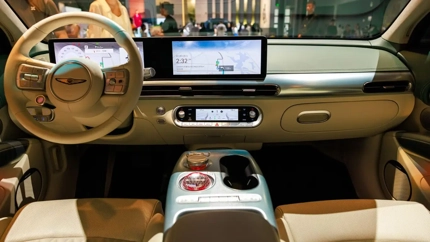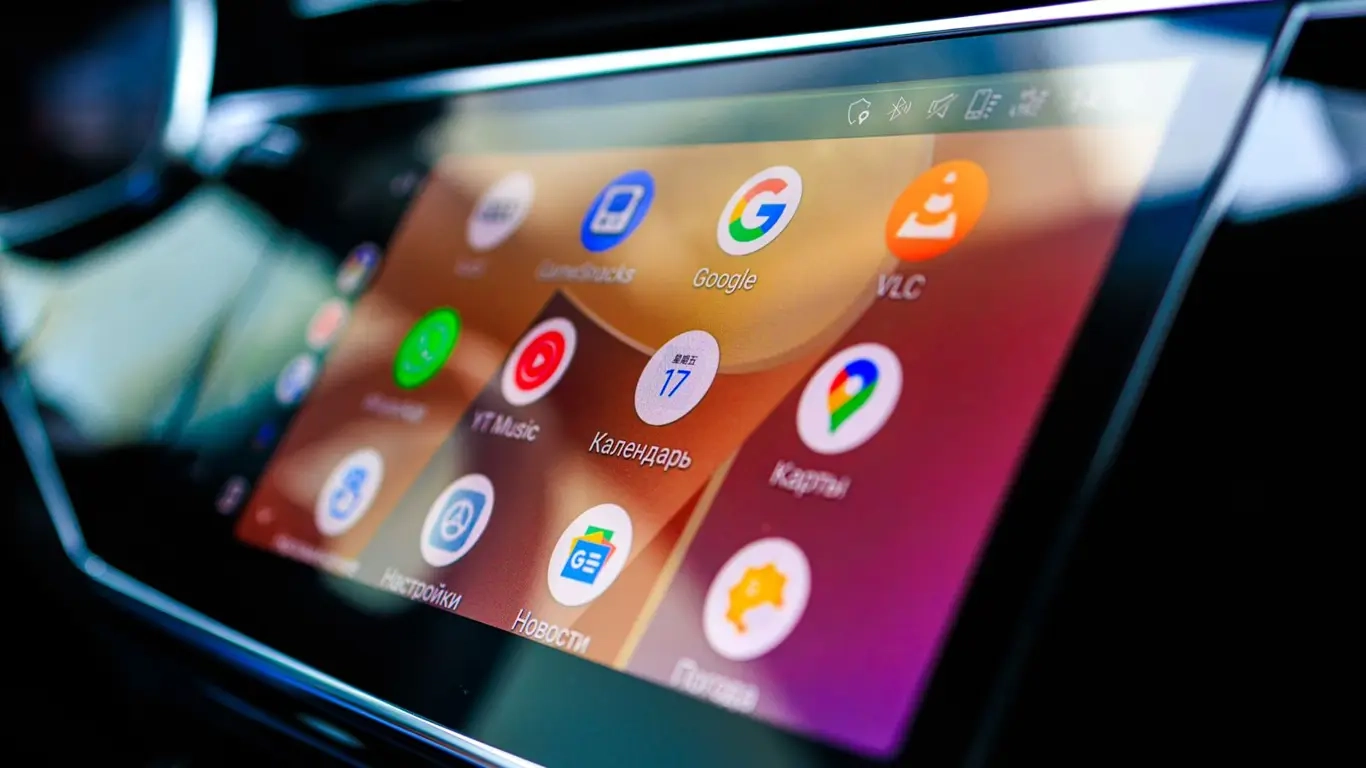

Android Auto is updated, yet the connection still keeps dropping? The uncomfortable part is that your phone is no longer the obvious suspect. In Android Auto 17.4 and newer versions, Google fixed one of the most irritating bugs that could freeze the connection or break it every few minutes. The Android Auto team officially confirmed the fix on August 18. So the first question is now simple: which Android Auto version is installed on the phone?
There is a catch. Android Auto 17.4 did not become a magic cure for every connection problem. Some users still reported freezes on newer builds, including 17.4 and 17.5, and the symptoms varied by phone, vehicle and connection type. In other words, Google closed one known scenario, but a fresh disconnect still does not automatically mean the car’s infotainment hardware is failing.
The issue became especially visible after Android Auto 17.2 rolled out. Owners described disconnects after a few minutes, a frozen interface and audio playback failures. Not every vehicle and smartphone was affected, though. That is why a version number alone was never a definitive diagnosis.
What if Android Auto is already updated to at least 17.4 and the connection still behaves unpredictably? The next step depends on whether the phone is connected by cable or wirelessly. Here is what to check next.
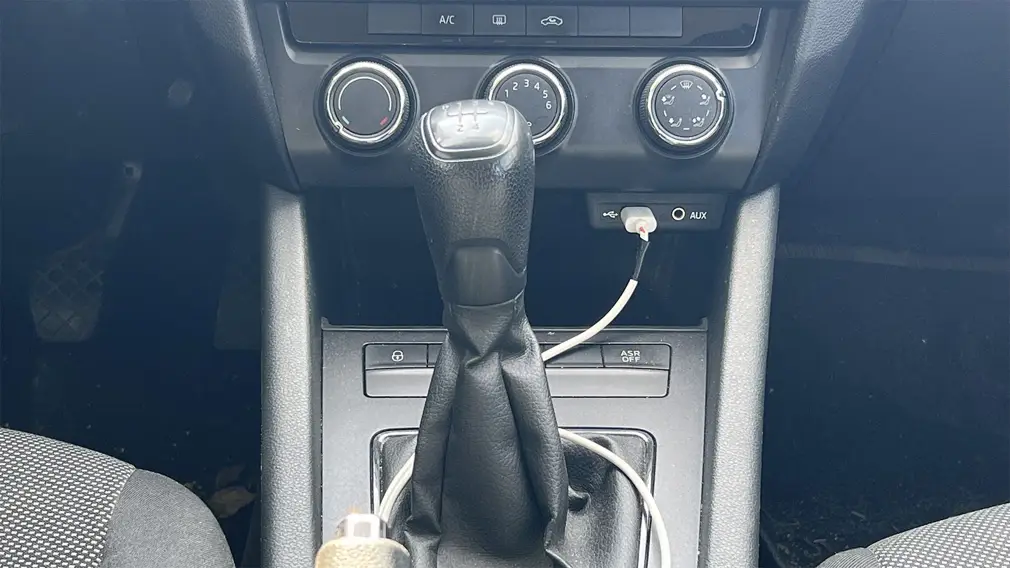
With a wired connection, the USB cable becomes the first suspect. In its official Android Auto help pages, Google recommends a high-quality cable shorter than one meter and advises against hubs or extension cables. If the system used to work properly and then suddenly started failing, Google explicitly recommends trying another cable.
There is an easy trap here: the phone still charges, so the cable must be fine. Not necessarily. Charging and stable data transfer place different demands on the connection, and Google itself warns that USB cables do not all work equally well with Android Auto. If the car has several USB ports, use the one that the manufacturer specifically supports for Android Auto.
Wireless Android Auto is a different story. Initial Wireless Android Auto pairing is done through Bluetooth, and during setup Google recommends keeping Bluetooth, Wi-Fi and location services enabled. So if a wireless connection keeps dropping, swapping a USB cable makes no sense. First check those wireless connections and recreate the saved “car — smartphone” pairing.
Still no luck? The next move is a full connection reset. Android Auto keeps a list of previously connected cars, so the saved vehicle can be removed and paired again from scratch. Google also recommends making sure Android Auto is enabled in the vehicle’s infotainment settings and then restarting the system.
If updating Android Auto, changing the cable or creating a fresh wireless pairing changes nothing, the list of suspects starts to shrink. For aftermarket head units from Pioneer, Kenwood and other brands, Google recommends checking the manufacturer’s website for newer firmware. With factory infotainment, the update and restart procedure depends on the exact make and model.
There is another useful test: connect a second smartphone. If two different phones running a current Android Auto version both lose the connection to the same infotainment system, and a different suitable cable has also been tested in wired mode, the odds that the first phone alone is responsible drop significantly.
Even that test does not automatically condemn the head unit. The same software bug can affect several phones, while in a wired setup the weak point may still be the vehicle’s USB port.
That is why Android Auto 17.4 changed the troubleshooting order. First rule out the Google software scenario that has already been fixed by updating Android Auto. Then test a wired connection with another good cable and the correct USB port, while a wireless connection should be checked through Bluetooth, Wi-Fi and fresh pairing. Only after that does it make sense to investigate the infotainment firmware and hardware more seriously.
Replacing the head unit after the first random disconnects is definitely premature. Android Auto 17.4 showed exactly why: symptoms that look like hardware failure can sometimes disappear after nothing more dramatic than a software update.